Using Flashcards World
Choose a Web Study Mode and a Comfortable Review Layout
Match the web app’s study modes to your task and adjust Zen mode, scrolling, images, card count, and review direction.
Choose a mode according to what you want to do in the next session: check a meaning, type an answer, compare pairs, draw, or listen. You can use the same deck for different tasks without making a separate copy.
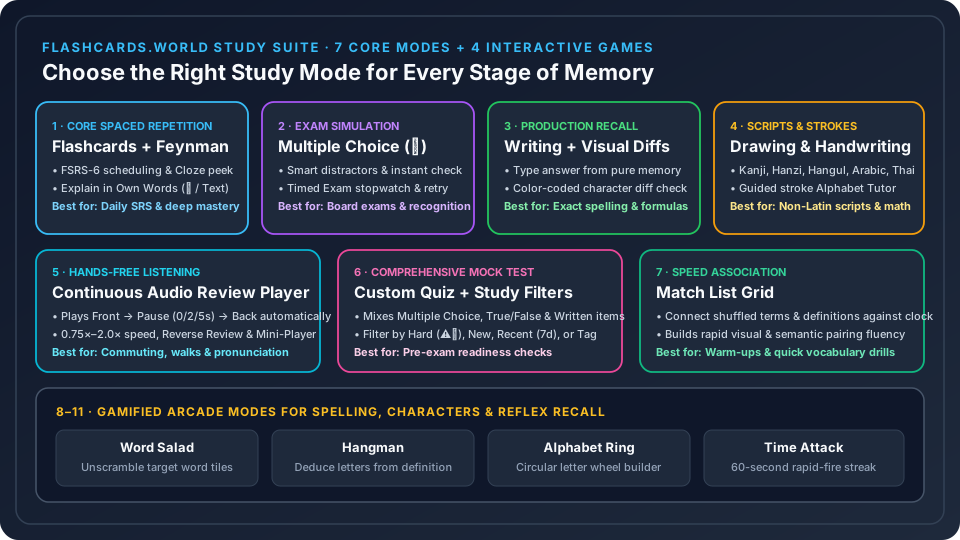
Pick a task from Study Modes
The Select Study Mode dialog separates Study Modes, Game Modes, and Brain Gym. Under Study Modes, these options offer different ways to work with your cards:
| Mode | A practical use |
|---|---|
| Flashcards | Read a prompt, attempt an answer, then reveal the other side. |
| Multiple Choice | Choose an answer from the displayed options. |
| Writing | Type an answer when you want to check its wording or spelling. |
| Match List | Match terms and definitions in a list. |
| Drawing | Sketch an answer, character, diagram, or formula. |
| Audio Review | Play a continuous sequence of questions and answers using text-to-speech. |
| Feynman Mode (in Flashcards) | Explain the answer in your own words (by typing or voice) before flipping to get a concept coverage score. |
Timed Exam Mode (⏱) |
Add a live stopwatch to Multiple Choice or Writing sessions, track pace per card, and drill missed questions at the end. |
Start with Flashcards to inspect a new deck's content. Switch to Writing when typing is the task you want to practice, or Audio Review when you want a listening session. These are workflow suggestions, not a requirement to complete every mode in a fixed order.
If a mode says it needs more usable cards, check that the selected cards have both prompts and answers. A partly filled deck may not provide enough material for a matching or choice activity.
Make the review screen fit your cards
In Settings, Zen mode hides distractions across study modes while keeping answers and essential controls available. Try it when you want fewer controls on screen; turn it off when you need the extra information again.
Two other controls apply to Flashcards review and help with content that does not fit comfortably:
- Enable Scroll allows scrolling for very long card content. Check that you have read the whole answer before moving on.
- Image below text puts each side's image beneath its text instead of on a separate flip. This control is disabled when Display Images Only is enabled.
Scrolling can make an existing long card usable, but an answer that requires several screens may also be a reason to rewrite it as smaller prompts in the web editor.
Check direction, filters, and session size
Reverse Review shows the definition first and the term afterward. For a vocabulary deck, this lets you change which language appears as the prompt without exchanging the stored front and back text.
Favorites Only restricts study to starred cards. If a session contains fewer cards than expected, check this setting. Display Images Only is another filter to inspect if text cards appear to be missing.
You can also use the Custom Study Filter bar at the top of the study screen to cram Hard / Struggling (⚠️) cards, New / Unseen cards, Recent (7d) cards, or a specific Tag without affecting your normal spaced repetition schedule.
For card review sessions, use Review Cards Number to select 10, 20, 30, or No Limit, and Review Sort to choose the review order. Set a smaller card count when you want a bounded review session. The card-count limit does not apply to continuous Audio Review, which plays all selected cards with text.
Test audio before a listening session
For Audio Review, open Settings → Text-to-Speech, enable speech, and check the selected Speech engine. Downloaded MOSS voices and device voices have different language coverage and preparation times. Test a short sample and confirm that your sound output works before starting a longer session.
See downloadable MOSS voices for setup, supported languages, and the browser-performance caveats.
Listen with the Audio Review player
Choose Audio Review, then select Play. The player reads the question, then the answer, then moves to the next card. It uses all selected cards with text, skipping textless sides and cards. There is no Reveal step or grading. Reverse Review changes the side order to answer first.
Use Pause to pause listening, Previous card or Next card to move between cards, or the Choose card slider to jump to a position. Stop ends playback. Turn on Repeat deck if you want the sequence to repeat.
Speed offers 0.75×, 1×, 1.25×, 1.5×, and 2×. Pause between sides offers 0, 2, or 5 seconds; choose a longer pause if you want time to attempt the answer before hearing it.
The back-arrow Minimize player control keeps playback running in a mini-player while you navigate within the app. Keep the browser tab open. Media keys can control playback where the browser supports them; do not assume playback continues after closing the tab or when the computer sleeps.
MOSS reuses voice setup, prepares one upcoming utterance, and saves generated audio locally for replay, including after a reload. Its saved audio cache is bounded to 64 MB and is cleared with Remove download. New text or first model use can still take time, particularly in Firefox. Cached audio improves reuse without guaranteeing instant or gap-free playback.
Ready to study smarter?
Create your first set on Flashcards World and start learning with spaced repetition.
Create a set